Context:
As a class assignment, my team was asked to create a fictional client problem that required us to create and administer a formative usability study. We created a fictional issue for Google Cardboard in which a certain adult demographic abandoned cardboard use after initially downloading the app and purchasing viewer. The following report summarizes our findings.
Introduction
Google Cardboard is a virtual reality platform developed by Google. The Google Cardboard mobile application can be used with a variety of VR viewers. Google offers its original standard Cardboard viewer as an introductory means for experiencing VR. Introduced in 2014, this Cardboard Viewer kit has been popularized as a low-cost device for experiencing virtual reality.


However, after purchasing the standard Google Cardboard viewer, most purchasers in the adult age range of 20’s – 40’s report downloading the Google Cardboard app but then never using the viewer or logging into the Google Cardboard app. Potential novice adult Cardboard viewer users abandoned Cardboard setup for unknown reasons.
We thus conducted a usability study with representative adult users to evaluate the Google Cardboard viewer/mobile application setup process. The objectives of the study were to answer the following questions and identify pain points that may cause adult users to abandon setup.
- Can users successfully complete the steps necessary to set up and begin using the Google Cardboard app?
- Open Google Cardboard Kit Box
- Download Google Cardboard App onto phone
- Open Google Cardboard app/Pair with Viewer
- Insert mobile phone into the Cardboard viewer
- Interact with Google Cardboard App Intro sequence
- Are users satisfied or frustrated with the experience of setting up the Cardboard viewer and app?
- Do users perceive the set-up prompts on the viewer kit box, on the viewer, and with the app as helpful?
- Do users enjoy their first experience using the Google Cardboard app and viewer?
Executive Summary
We conducted a within-subjects usability study by observing six representative adult participants setup Google Cardboard. The setup procedure consisted of tasks that spanned the initial setup experience through the interaction experience with the in-application introductory VR tutorial. Participants were then debriefed through a post-task questionnaire to evaluate their level of satisfaction with the tasks and support materials and through an informal interview about their experience.
Positive Findings
Our findings indicate that participants were overall satisfied with their setup experience and enjoyed their first Google Cardboard experience. Their comments reveal that they were very impressed by the VR experience in the Cardboard application introductory tutorial. Additionally, participants successfully completed most setup steps and noticed and appreciated most setup prompts.
Usability Issues – Areas for Improvement
Critical issues were, however, encountered during setup and the introductory tutorial with the viewer button, phone placement in the viewer, and the in-app tutorial skip button. These issues caused participants to miss steps, miss portions of the tutorial, or fail to continue through the setup process without moderator intervention. Also, although setup prompts were used by the participants, the download app prompt was uniformly noticed and participants generally desired more support in the form of detailed, readily available setup instructions.
Recommendations
The VR experience afforded by Google Cardboard was a powerful experience for participants. Below, we put forth a series of recommendations based on our findings that should assist with making this setup process more seamless, and should minimize new user confusion and frustration. Addressing the setup and support issues detailed in this report will ensure that potential Cardboard users can experience VR with Google Cardboard.
Methodology
Participants
A convenience sample of representative users was recruited for the study according to the following screening criteria:
- Adults in age range of 20’s – 40’s.
- Owns iPhone with operating system version iOS 8.0 or later.
- Tested only iPhone users and did not include Android or other OS systems to eliminate OS as possible variable.
- Google Cardboard only compatible with iOS 8.0 or later.
- Has some experience downloading and using mobile applications.
Participants also screened to exclude individuals with previous Google Cardboard experience and previous VR experience beyond casual one time observation of someone engaging with VR. This exclusion criteria was used to minimize the potential impact on participant performance of the transfer of knowledge from previous experiences with Google Cardboard or constructing/setting up other VR viewers.
Participant Profiles
The following table shows the participants who were selected for the study. The complete Screener is available here.
| Part # | Gender | Age | Education | App Exp | Cardboard Exp | VR Exp | VR Details |
| 1 | Male | 20-29 | Associates | Yes | No | Yes | Observe Playstation VR |
| 2 | Male | 40-49 | Masters | Yes | No | No | |
| 3 | Male | 20-29 | Bachelors | Yes | No | No | |
| 4 | Female | 40-49 | Bachelors | Yes | No | No | |
| 5 | Female | 30-39 | Doctoral | Yes | No | Yes | Saw demo at kids’ school |
| 6 | Male | 40-49 | Doctoral | Yes | No | Yes | Saw demo at kids’ school |
Procedure
- A within-subjects test design was employed.
- Participant signed consent to be recorded and have their data used in the study.
- Study included two parts:
- Task Observation: Observed participant setting up Google Cardboard and going through the introductory sequence on the Google Cardboard app
- Debriefing: Post-Task Questionnaire and Interview.
- Moderator was present during entirety of study and sat next to participant; moderator took notes during the study.
- Task Observation and Debriefing were recorded.
Task Observation
Setup Tasks
- Participant given unopened Google Cardboard viewer box and instructed to imagine that s/he had ordered viewer and would like to now setup Cardboard viewer and app.
- Instructed participants to “think aloud” while setting up Cardboard.
- Moderator used prompts to remind participant to think aloud as necessary.
- Moderator gave no additional task instructions given to participants to evaluate what task order participant took to set up Cardboard and to evaluate whether support materials were noticed and helpful.
- To setup Google Cardboard, participant needed to successfully perform the following task scenarios and subtasks within each task: (subtasks not listed)
- Open Google Cardboard Kit
- Download Google Cardboard app onto phone
- Open Google Cardboard app & Pair with Viewer
- Insert mobile phone into the Cardboard Viewer
- Interact with the Google Cardboard app intro sequence
Debriefing
- Participants were asked to complete Post-Task Questionnaire.
- Questionnaire was used to determine participant satisfaction with the ease of completing, time taken, and support information provided for each Cardboard setup task.
- Moderator conducted brief debriefing interview with participant.
- Asked participant to provide reason for ease satisfaction rating, time satisfaction rating, and support information satisfaction rating for each setup task.
- Asked participant for overall impression Google Cardboard Viewer and app?
Data Collection and Analysis
Qualitative Data
Study observation notes and recordings were reviewed and analyzed to determine whether and why:
- usability issues exist with setup tasks,
- participants were able to notice/use support information,
- participants enjoyed their Cardboard experience, and
- participants were satisfied or frustrated with the setup process.
Quantitative Data
After completing a study, the moderator determined whether participant successfully completed each task and associated sub-task according to the following criteria.
- Task Success – User completed task. User may have struggled, but got there on own, possibly with self reflecting from probes about what thinking or trying to do.
- Task Failure – User: A) never completed task; or B) completed task after struggling that required hints that were not reflective probes but hints to try a certain action.
Participant Post-Task Questionnaire was based on ASQ (After-Scenario Questionnaire) as described in Quantifying the User Experience (Sauro). Participant rated his/her level of agreement (scale from 1 – Strongly agree to 7 Strongly disagree) with the following statements:
- Overall I am satisfied with the ease of completing the tasks in (this scenario).
- Overall, I am satisfied with the amount of time it took to complete the tasks in (this scenario).
- Overall, I am satisfied with the support information (insert specifics) when completing the tasks.
Participant Post-Task Questionnaire overall satisfaction ratings were calculated by averaging the three responses (ease, time, support) within a participant and task. The average overall satisfaction rating (mean) and most common overall satisfaction rating (mode) was analyzed to determine whether participants were overall satisfied or frustrated with the setup process.
The average and most common satisfaction rating among participants for the support information statement was also analyzed on its own to determine participants’ overall satisfaction with the provided support information for Cardboard setup.
Findings
This section details findings about participants’ ability to setup Cardboard, experience with setup prompts, experience first using Google Cardboard VR, and overall satisfaction with the setup process. Positive findings are explained and usability issues are identified. Recommendations are provided for remedying encountered issues.
Most setup steps working – Issues with viewer button, phone placement, and skip button
Participants completed most of the steps necessary to set up and begin using the Google Cardboard viewer and app. Participants successfully opened the Cardboard kit box, downloaded the app, and paired the app with the viewer. The viewer /app pairing procedure was particularly successful for participants.
However, participants encountered several problems that compromised their setup experience. Although all participants appeared to successfully insert the phone into the viewer, issues with this task later manifested during the in-app introductory tutorial for some participants. Some participants also experienced issues with the Cardboard viewer button and in-app skip button during the introductory tutorial. These issues (cardboard viewer button, viewer phone placement, skip button) inhibited participants from completing all steps within the setup process.
Issue: Cardboard Viewer Button – High Severity
Observation
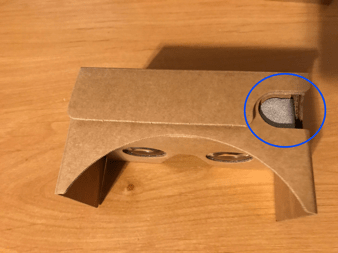
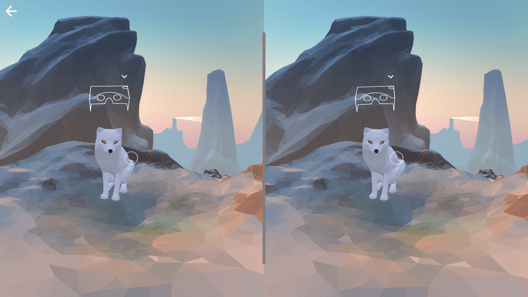
During the Cardboard app introductory tutorial, participants had difficulty locating the viewer button and recognizing the viewer button as a button.
- During the introductory tutorial, 2/6 participants failed to see and understand the in-app visual prompt that directs users to the viewer button location.
- One of the participants did find the viewer button but believed the visual prompt instructed him/her to look down and click the viewer button; by looking down and clicking the viewer button, the participant accidentally selected the in-app “Skip” tutorial button and exited out of the introductory tutorial altogether.
- The other participant failed to locate the viewer button on the cardboard viewer despite concerted effort. The impact of failing to find the button was fatal to the tutorial experience as the participant could not proceed through the tutorial unless s/he clicked the viewer button during the first scene. The moderator intervened by pointing out the location of the viewer button after roughly 3-4 minutes so the participant could proceed past the first scene. Participant exclaimed, “Oh, that’s a button?!”
- Even among participants that did successfully locate and interact with the viewer button, three additional participants commented on the button’s location as difficult to find. (4/6 total participants) They also commented that the button’s appearance was not “like a button.” “[I]t looks a little weird.”
Source
- App introductory tutorial visual prompt that directs users to viewer button location is a stylized image of cardboard viewer that requires users to stare at it long enough to see and understand small arrow animation that points to viewer button location.
- The user may not watch long enough to see and understand arrow animation.
- The visual prompt is not constantly visible and only fades into appearance if user positions viewer in certain exact location; User may turn away or move head too quickly to see image.
- Viewer button’s appearance does not comport with user expectations for a button’s appearance.
Recommendation
- Google Cardboard takes a minimalistic approach in their design of the physical attributes of the viewer, which is a primary reason for the product’s success. However, this also comes at the expense of usability. Because the outside of the viewer is non-descript, without a clear visual cue, the user assumes that there is really nothing of note, and may focus entirely on the interface that is shown through the viewer. Therefore, add a clear indicator on the button itself (we recommend literally adding the word “Button” on top of the button) so that there is a good chance during setup that the user becomes acquainted with the location of this vital instrument needed to interact with the application.
- Currently, the prompts that instruct the user to interact with the interface are vague. On the introductory screen, messages such as “Look at the Fox” and “Look Down” are giving visual instructions, but no physical instructions. Simply adding clearer directions to the existing messages on-screen should help clear up this impasse and period of confusion (e.g. “Look at the Fox and Press Button”). Within further scenes of the VR introductory sequence, it may not be as necessary, because by now the user is familiar with the button on top of the viewer and recognizes that it is the primary key to interaction with the interface.
Issue: Cardboard Viewer Phone Placement – High Severity
Observation
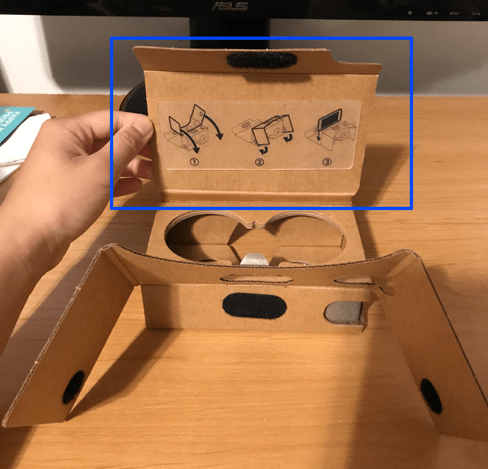
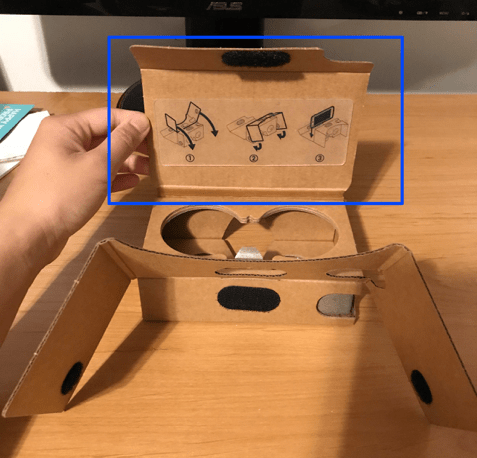
All participants located, observed, and followed the instructional diagram for folding viewer and inserting phone into the viewer. However, some participants experienced phone placement problems despite following the diagram and appearing to successfully place phone into the viewer.
- During the introductory tutorial, 2/6 participants reported seeing a double image when looking at text and image elements with fine lines. The double image caused participants to experience difficulties reading in-app text intended to instruct users how to use the viewer. Both participants reasoned that phone placement in the Cardboard viewer was the cause.
- “Once I got into the intro, I felt like I hadn’t put my phone in perfectly, because I was seeing double.”
- “It was hard to read because it was projecting double.”
- “I kind of see the words, the words are a little double. I don’t know if the phone isn’t in perfectly or something.”
- One of these participants opened the viewer and attempted to readjust the placement of his/her phone during the portion of the introductory tutorial that auto-progresses. S/he successfully adjusted the position of the phone so s/he no longer saw a double image through the viewer. However, the impact of the need to adjust the phone was missing a scene of the auto-progressing tutorial and failing to engage in tasks associated with that scene. Despite, adjusting his/her phone, the phone continued to shift in the viewer for the remainder of the test.
Source
- Instructional diagram for folding viewer and inserting phone into the viewer does not include instructions about how to ensure phone fits snuggly into viewer so no shifting occurs as viewer is moved around to experience VR application.
- Cardboard viewer itself does not hold users’ phones in place uniformly.
- Single Velcro patch secures flap over phone in viewer and users must pull flap so tightly cardboard bends; users may assume this is an incorrect use of the viewer.


Recommendation
- Add a calibration step to the pairing process of the phone to the viewer. Due to the different sizes of screens from one iPhone to another, the user needs to be confident that the phone is placed in the optimal position to experience the interface. The user would shift/slide/adjust the phone while peering into the viewer so that it matches the calibrator on-screen.
Issue: Introductory Tutorial Context and the “Skip” Button – Medium Severity
Observation
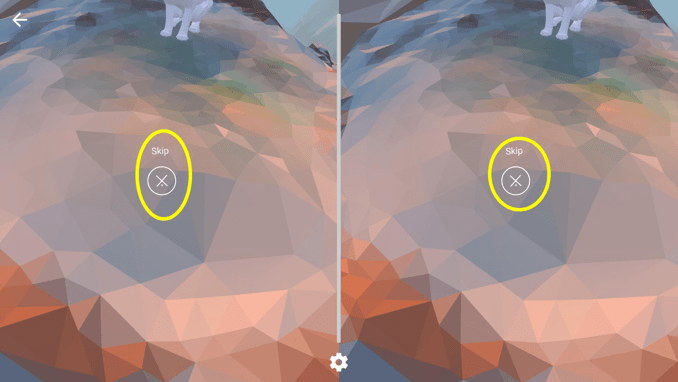
During the introductory tutorial, 2/6 participants accidentally selected the in-app “Skip” button and exited out of the tutorial without engaging in the VR scenes or the button and viewer rotate training sections.
- As already noted with the issues surrounding the viewer button, one participant selected the in-app “Skip” tutorial button after misunderstanding the viewer button location prompt. This participant reported that s/he intended to look down with the viewer and click the button; but s/he did not intend to specifically select the “Skip” option. S/he was unaware that s/he was exiting the introductory tutorial and did not realize s/he was missing instruction. “I was not aware that I had skipped the intro.” The impact of an unintentional and unknowing skip out of the tutorial is that participant failed to engage in the tutorial VR scenes or the button and viewer rotate training sections.
- The other participant accidentally selected the in-app “Skip” button while clicking the viewer button to place flowers during the “Create” scene of the intro tutorial. This participant realized that s/he had prematurely exited the application and worked to find a way to re-enter and finish the remainder of the tutorial on own violation. The impact of an unintentional but self-aware skip out of the tutorial allowed participant to choose to re-engage and finish tutorial training.
- “I was annoyed that I accidentally pressed skip when I looked down. I also wish there was a consistent set of “back, skip, exit” buttons (like the exit, minimize, and maximize buttons on windows in computers) because taking it off and rotating it to go back takes away from the VR experience…”
Source
- The Cardboard app introductory tutorial does not give user explicit context that they are in a tutorial for learning to use the viewer and associated VR apps.
- Google Cardboard provides a seamless flow from opening the app, to pairing the phone with the phone, to the start of the introductory tutorial. Users do not need to choose to engage in the tutorial as it is automatically engaged at moment user pairs phone and places phone in viewer. However, some users become confused as to their current context in the app. The introductory tutorial is not labeled as an introductory tutorial on any visual screen. Users may be unaware that they are actually in an introductory tutorial and thus unaware that they can skip out of a tutorial that will teach them how to use the Cardboard viewer and VR apps.
- App does not give user opportunity to confirm “Skip” button was intentionally selected.
- Even if a user is aware that s/he is in the introductory tutorial, if s/he accidentally select the in-app “Skip” button, the user is instantly exited from the intro tutorial without warning or a chance to confirm the action.
Recommendation
- The “Skip” message should be expanded to “Skip Cardboard Introduction?” so that is clear what action will be performed.
- There should be a confirmation step verifying that the user indeed wants to skip the Introduction sequence to prevent accidental execution. Otherwise, the user can lose context, or otherwise lose track of where they are within the application after unwittingly performing this action.
Most setup prompts noticed and appreciated – Expect step-by-step instructions
Participant responses to the post-task questionnaire and debriefing comments revealed they overall perceive the available support materials to be helpful. The post-task questionnaire indicated that participants were satisfied with the provided support information.
- Participants’ average satisfaction rating (mean) for support information on each setup task was 2. (scale from 1 – Strongly agree/satisfied to 7 Strongly disagree/dissatisfied)
- Participants’ most common satisfaction rating (mode) for support information on each setup task was 1, strongly agree. (scale from 1 – Strongly agree satisfied to 7 Strongly disagree/dissatisfied)
Participant comments reinforce the positive satisfaction ratings. Positive feedback was strongest for the instructional prompts given in-app during the phone pairing procedure, the on-viewer folding/phone placement diagram, and the in-app intro tutorials prompts.
- Four participants (4/6) commented that the in-app phone/viewer pairing support made the process easy and they emphasized the step by step nature of the support. “Find this symbol on viewer. So that’s the QR code so this is good.”
- “Now place the phone in viewer, there’s a little animation in there.”
- Four participants (4/6) reported perceiving the on-viewer folding/phone placement diagram as helpful during the debriefing session, including 1 of the participants that initially had trouble orienting to the diagram.
- “It was easy, showed you how to do it on the box.” (holding and referring to viewer as “the box.”) “Inside tells you step by step.”
- Three participants (3/6) commented that the in-app instructions during introductory tutorial were helpful and supportive.
- “There’s instructions every step of the way.” “Yeah that was actually really fun. If you’ve ever played a video game growing up, you know what to do. (regarding in-app circle cursor) You click it.”
- “It’s very cool and very easy. The screen tells you what to look at and you’re just exploring basically.”
- “Self-intuitive, easy to understand, not difficult at all.”
Participants also noticed most of the set-up prompts on the box, viewer, and within the Cardboard application. As previously noted, most participants successfully completed the setup tasks with these support items. Although all participants successfully download the Cardboard app, the experience of some with the box prompt to download the Cardboard App revealed it is not noticeable. Additionally, although the available support materials were perceived as helpful, participants indicated they were looking for and desired more instructional support.
Issue: Box prompt to Get App – High Severity
Observation
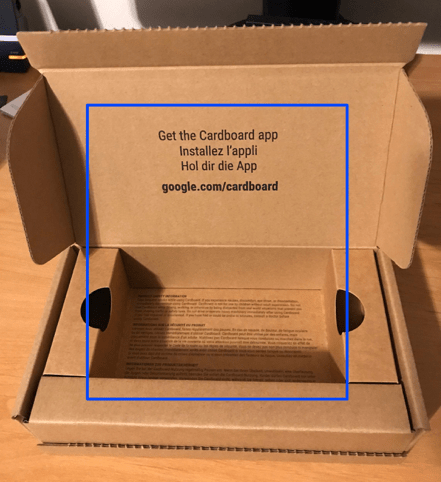
Half of the participants (3/6) did not initially notice the box setup prompt to “Get the Google App google.com/cardboard.”
- One of these participants eventually noticed the box instruction; but the other two participants never noticed the app instruction and url on the box.
- One participant spent time determine whether the QR code on the viewer was intended to point the user to the correct app for download.
- “There’s a QR thing on the back, maybe that will take me to the web page to get the app…”
- All three participants did not go to google.com but instead went directly the Apple store and searched “Cardboard.” This search returned multiple results and two participants experienced confusion determining which app was correct, Google Cardboard.
- Two (2/6) participants placed their phones into the viewer before downloading the app. They then had to backtrack and remove their phone to download the app. One participant was visibly frustrated at this point during setup.
- “Although I don’t know if I have an app so…. (looking at viewer diagram, flipping viewer over and looking around) “It doesn’t tell me what to get…”
Source
- The box prompt to Get App is not obvious.
- The text of the prompt is black on dark cardboard on the underside of a box flap; users can easily miss this text in dim lighting.
- If a user first focuses on the viewer and first locates the instructional diagram for placing the phone in the viewer, s/he may assume all instructions are on the viewer.
- The box prompt to Get App does not give a direct actionable instruction.
- If a user navigates to google.com/cardboard, s/he must then find the “get app” link to be brought to his/her platform’s appropriate app store. While this attempts to bring the user directly to app within the Apple store, if s/he misses small “Get App” button link, user will search app store on own and is never provided with the exact name of the appropriate application “Google Cardboard” in the app prompt “Get the Google App google.com/cardboard.”


Recommendation
- Attach a conspicuous instruction sheet underneath the flap in place of the large URL, with a handful of very clear, concise instructions ranging from setting up the viewer to experiencing the introductory sequence.
- To get started, visit google.com/cardboard
- Select Google Cardboard app
- Download and install app
- Pair viewer with phone by scanning QR code on box
- Experience Google Cardboard introductory sequence
- Another option would be to attach an instruction slip in the box with directions on how to download the Google Cardboard app in the App Store.
- Search “Google Cardboard” in the App Store
- Select the most popular option (typically the first one)
- Ensure that it’s the app developed by Google, Inc. by seeing the developer’s name underneath the app’s name on the app’s page
- Download and install app
- Pair viewer with phone by scanning QR code on box
- Experience Google Cardboard introductory sequence
Issue: Where are the step-by-step instructions? – Medium Severity
Observation
Participant comments and observed behaviors and reactions in the aggregate suggest that they desired more comprehensive step-by-step instructions to be available beyond the setup prompts provided.
- Upon opening the Cardboard viewer box, 2/6 participants stated their perception that there were no set-up instructions.
- “Well, I don’t know how to use this thing. There’s no instructions…”
- “Don’t know how to use it from just looking at it…there’s no instructions or anything.”
- Two (2/6) participants commented on a desire for direction or a clear statement during moments of frustration with deciding what to do first for setup.
- “I wish there was a sticky note on the cardboard viewer that says ‘start here.’”
- “The instructions don’t really say anything.”
Source
- Current set-up prompts are disparate across viewer kit box flap, under viewer flap, and within the app.
- No proscribed task order for set-up is provided and users are forced to use their intuition and reasoning.
- No obvious link for additional help is provided outside of google.com/cardboard url provided as part of the setup prompt for downloading the app. The site at this url also does not contain a clear pathway for help or step-by-step instructions.


Recommendation
- Attach a conspicuous instruction sheet underneath the flap in place of the large URL, with a handful of very clear, concise instructions ranging from setting up the viewer to experiencing the introductory sequence.
- To get started, visit google.com/cardboard
- Select Google Cardboard app
- Download and install app
- Pair viewer with phone by scanning QR code on box
- Experience Google Cardboard introductory sequence
Enjoyed first Google Cardboard Experience – The VR “Wow” factor
Participants came to life during the Cardboard app introductory tutorial. They visibly appear to enjoy experiencing VR through the tutorial as some jumped up and began smiling. All participants made positive comments while engaging with the VR tutorial.
- “There’s seagulls.” (stands up and moves around) “I’m in a world where I can fly. Oh, this is so cool!”
- “There’s a little fox right there…a digital fox! Cool!”
- “A big ass whale just jumped right next to the boat!” (Physically stands and laughs. Smiling.)
Five participants (5/6) engaged with the entire introductory tutorial and displayed desire to continue engaging with VR through the viewer and app.
- As previously mentioned, one participant that accidentally skipped out of the tutorial worked to find a way to return into the tutorial on his/her own volition.
- Two participants made statements that indicated they wanted the tutorial continue as they were enjoying the experience.
- “Aw, I want to keep playing though!” (Participant continued looking through viewer.) “I think it’s really cool. I want to keep playing. With this basic demo you can see that there’s a lot you can do with this.”
- “Aw that’s cool – aw that’s it?” (In response to test being over.)
Even the participant that unknowingly skipped most the introductory tutorial was impressed with the VR s/he experienced in the first scene.
- “I think it’s brilliant. Just genius.”
However, some participants did experience physical fatigue, a potential issue that will impact users’ continued enjoyment.
Issue: Arm Fatigue – Low Severity
Observation
Two (2/6) participants either directly commented on arm fatigue after making his/her way through the introductory sequence, or demonstrated discomfort during the observation of the test.
- One participant stated “My arms got pretty tired while I was doing it. Definitely feeling it” while rubbing his triceps.
- One participant continually changed grips on the viewer to re-adjust her arms throughout the introductory sequence, suggesting a bit of discomfort, although she stated post-test that she did not remember feeling tired.
Source
- Once the viewer is set up, users are expected to keep the viewer at eye level for an extended period of time.
- For long sessions of interacting with Cardboard, fatigue could potentially become a factor that negatively impacts usability and experience
- Lack of arm support or lack of “rest” suggestions within the program are not ergonomically ideal
Recommendation
- Google Cardboard will pause action and suggest that the user “take a break” intermittently, so that users can put their arms down for a moment
- Further tests may need to be performed to assess the optimal time increments after which to suggest taking a break.
Overall satisfied with setup experience – But VR “Wow” can’t hide issues
Participant responses to the post-task questionnaire indicate they are overall satisfied with the experience of setting up the Cardboard viewer and app. Participants’ overall satisfaction ratings for the setup tasks was an average of the rating of their satisfaction with the ease of each setup task, their satisfaction with the amount of time required in each setup task, and their satisfaction with the support provided for each setup task.
- The average overall satisfaction rating (mean) for the setup task scenarios was 2. (scale from 1 – Strongly agree satisfied to 7 Strongly disagree satisfied)
- Participants’ most common overall satisfaction rating (mode) for the setup task scenarios was 1, strongly agree. (scale from 1 – Strongly agree satisfied to 7 Strongly disagree satisfied)
All six participants made positive statements about their overall experience during the debriefing sessions. Their statements echo and support the strong overall satisfaction ratings seen in the post-task questionnaire.
- “I am really impressed, and it worked much better than I thought it would.”
- “For a cardboard box, it does what it was intended to do.”
- “Very good technology, at a very reasonable price.”
- “I think it’s brilliant just genius.” (previously mentioned participant that accidentally skipped most of tutorial)
Two participants (2/6) specifically commented that they found the visual appearance of Cardboard items to be pleasing.
- “It was beautiful.” (Referencing in-app introductory tutorial.)
- “It has really nice packaging.” (Referencing box and viewer)
As previously mentioned, participants did experience issues during setup: viewer button, viewer phone placement, and skip button. They also experienced some frustration with support provided by set-up prompts: box prompt to get app and desire for more instructions. Yet, participants were impressed enough with their initial VR experience to be overall satisfied with Google Cardboard. However, participants indicated a desire for the setup issues to be addressed.
- “I would say just indicate how exactly my phone is supposed to fit in there. The instructions could maybe a be a little bit clearer, and somehow making the button more visible – maybe by labeling it ‘button.’ But overall I thought it was really cool.”
- “And it took a little bit longer because I had to take the time to figure it out. I’m not sure how they could make the pictures clearer…But yeah overall I was satisfied with being able to get the phone in.”
- “But besides that (seeing double/viewer trouble), it was beautiful. It was cool.”
if following the url link provided on the box, the page opens up with a button to “get it (app)”, no need to scroll to find it, but if they do scroll the page and somehow miss it, then the button should be clearer and bigger… (see screenshot below). Maybe instead of “Get It” the button should say “Download App” ?
 Mary Jo Zefeldt